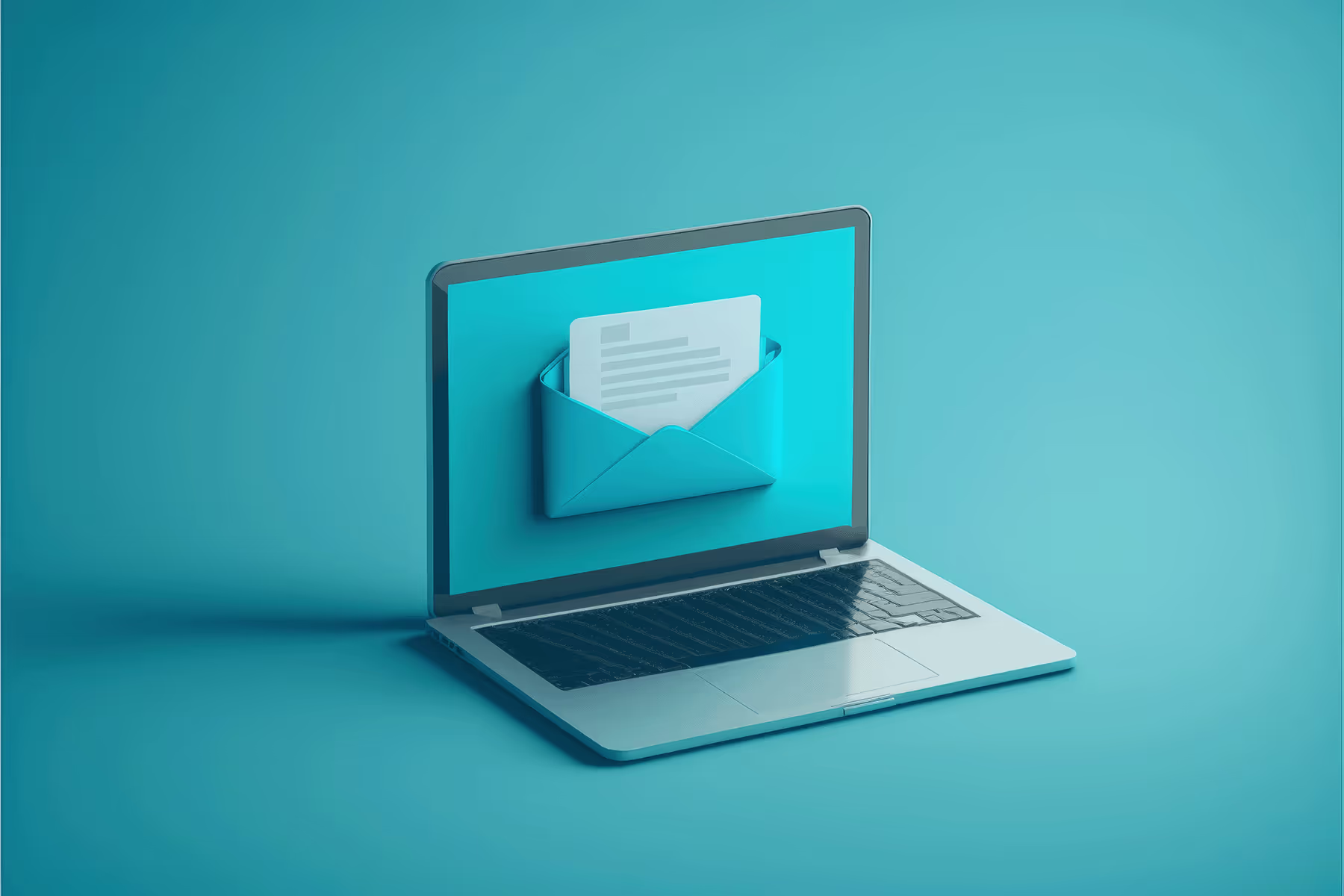
You’ve just clicked “Send” and immediately see the error: the wrong attachment, the wrong recipient, or a message full of typos sent to your executives. Sound familiar? You’re not alone. Thousands of business users search every day for a way to recall an email in Outlook. The good news: Outlook offers a recall feature. The bad news: it doesn’t always work. In this article, you’ll learn exactly when you can recall an email in Outlook, how to do it step by step, and what smarter alternatives are available if the recall feature lets you down.



The short answer: yes, but only under strict conditions. Outlook's recall feature, officially called "Recall Message," works only if all of the following requirements are met:
In other words: recalling an email in Outlook is only reliable within your own company network—and even then, only if you act quickly enough. For messages sent to external recipients (customers, suppliers, job applicants), the built-in feature offers no guarantee whatsoever.
You can also recall a message in the new Outlook for Windows. The requirements are the same as for the classic version: both you and the recipient must have a Microsoft 365 account for work or school within the same organization, and the recipient must not have opened the message yet.
Shortly thereafter, you'll receive a revocation report in your Inbox. It will indicate, for each recipient, whether the revocation was successful, is still in progress, or failed.
Don't see the "Recall Message" option? If so, you're probably still using an older version of the new Outlook, or a personal account. In that case, use "Undo Send."
Do you use a personal account, such as Outlook.com or Hotmail? If so, the "Recall" feature is not available. However, you can enable "Undo Send." This creates a delay of up to 10 seconds during which the message has not yet been sent.
After sending, a bar briefly appears with the "Undo" option. If you click it, the message will be stopped before it is sent.
In practice, people use all sorts of words to describe the same thing: retrieving, withdrawing, recalling, revoking, or canceling an email. In Outlook, this always refers to the same feature, which is officially called “Recall Message.” This feature attempts to remove a message that has already been delivered from the recipient’s inbox.
There is one feature that’s really different: “Undo Send.” It doesn’t send anything back, but it delays sending for a few seconds. During those seconds, you can still stop the message from being sent. Because the message never reaches the recipient, this is the more reliable of the two. The downside is that you have to act very quickly, and the setting must be enabled in advance.
In summary:
In practice, trying to recall a message in Outlook fails more often than it succeeds. These are the most common reasons:
The fundamental problem is that, as the sender, you have no control over what happens on the receiving end. Once an email leaves your outbox, it’s essentially out of your hands.
What if you could send a message that you could always recall later, regardless of whether the recipient uses Exchange or has already opened the message?
With FileCap, you don't send a traditional email that ends up on the recipient's server. Instead, you share a secure link. That changes everything:
While Outlook’s recall feature is an unreliable stopgap solution, FileCap offers systematic control over your sent messages and files. This is a significant difference, especially for organizations that work with sensitive documents (contracts, personnel files, financial data).
No. Outlook's recall feature only works when both the sender and the recipient use Microsoft Exchange or Microsoft 365 within the same domain. Messages sent to Gmail or other external providers cannot be recalled.
As soon as possible. Recalling an email only works if the recipient hasn't opened it yet. In practice, you only have a few seconds to a few minutes, depending on how often the recipient checks their email.
The recipient will then receive both the original message and a notification that you tried to recall it. This could actually draw even more attention to the message—the opposite of what you're trying to achieve.
No. The "Recall Message" feature is not available in the Outlook mobile app. However, you can use "Undo Send" there, provided that setting is enabled. This gives you a few seconds to cancel the sending after all.
"Recall Message" is an Exchange feature that attempts to remove a message that has already been delivered from the recipient's inbox. "Undo Send" is a delay that prevents the message from being sent in the first place. The second option is more reliable, but only works within a few seconds after clicking Send.
Yes. FileCap isn't just for sending secure messages—it's also for sharing large files. You can set who has access to each file or folder, and you can revoke that access at any time.
Go to Sent Items, double-click the message to open it in a separate window, and select "Recall Message" on the ribbon. You'll then receive a recall report in your Inbox. This feature works only with a Microsoft 365 account for work or school, provided the recipient is in the same organization and hasn't opened the message yet.
Not with Outlook's recall feature. Once the message has been opened, you can no longer recall it. With FileCap, you can: because you share a secure link instead of an attachment, you can revoke access at any time, even if the recipient has already viewed the content.
Outlook's recall feature is a handy workaround, but not a reliable solution—especially not for business communications with external parties. If you want to be absolutely certain that you can recall a sent message or file, no matter the situation, FileCap offers the control that Outlook cannot provide.
Try FileCap for free and see how secure file sharing works. No more surprises after you click "Send."
The FileCap add-in makes sending a secure email or sensitive files child's play. Check out how it works below:
Invite someone to send you large files or a message securely with FileCap. Fast and simple!
Choose one of four available authentication methods: password, code via email, code via SMS or a company password. Sending extra sensitive information? Simply use a second verification.
Customize your FileCap portal with a large background, your company logo and, of course, matching colors. The emails that you send with FileCap will also automatically receive your house style. Very familiar for your customers.

By taking advantage of the additional security options, business rules to monitor the content of emails and messages and the ability to retract sent messages, you reduce the likelihood of data breaches.














































































Send emails and files with confidence, revoke them effortlessly and protect sensitive information with greater security. Choose a smart solution and increase your GDPR compliance today. Discover the power of FileCap, send and receive emails and files without worry!
Try FileCap now